
please follow the steps below to resolve "invalid digital signature" / "cabinet file is corrupt":
1. Open Windows File Explorer
2. Navigate to the following folder: [NAVSTICK]: \INFO\NSW\
3. Right click the file "navstation.cab"
4. Click "Properties"
5. Click on the "Digital Signatures" tab
6. Click "NAVTOR AS"
7. Click "Details"
8. Click "View Certificate"
9. Click on the "Certification Path" tab
10. Click on "NAVTOR AS"
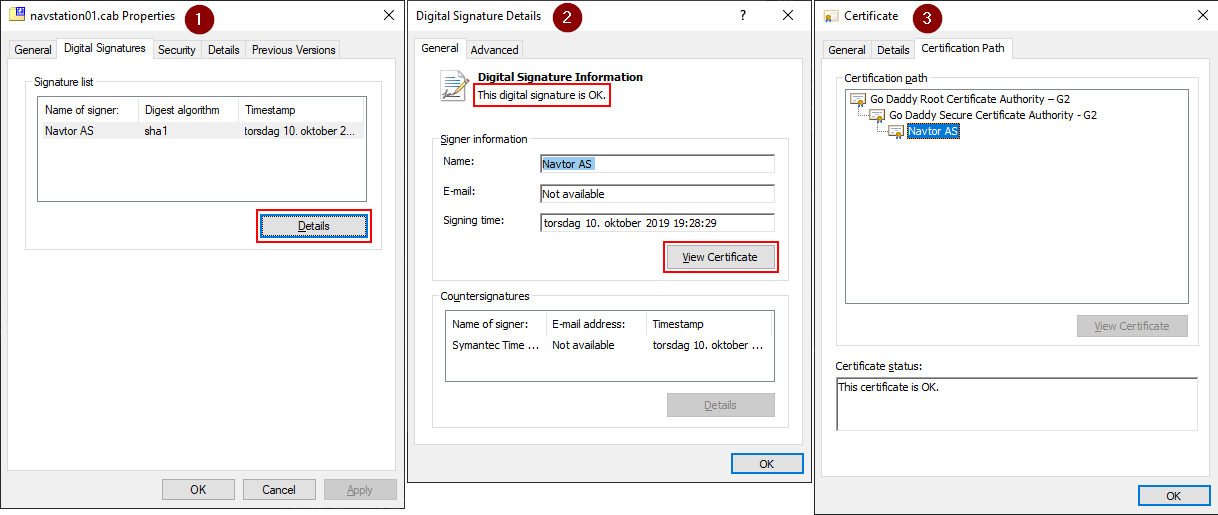
If there are any certificate errors (red cross), please follow the steps below:
1. Navigate to the following folder: [NAVSTICK]:\INFO\NAVTOR\Setup\Microsoft\
2. Run the file "rootsupd.exe" as an administrator ( this will update your Windows root certificates )
3. Start the NavStation installation again
If still same issue, please send an email with screenshots of error message to technical@navtor.com
